JBL Go 4 - Ultra-Portable, Waterproof and Dustproof Bluetooth Speaker, Big JBL Pro Sound with Punchy bass, 7-Hour Built-in Battery, Made in Part with Recycled Materials (Black)
$49.95 (as of September 8, 2026 00:22 GMT +00:00 - More infoProduct prices and availability are accurate as of the date/time indicated and are subject to change. Any price and availability information displayed on [relevant Amazon Site(s), as applicable] at the time of purchase will apply to the purchase of this product.)Setting up a physical retail store on Shopify means more than just installing an app — you need the right hardware to actually run it. The wrong equipment leads to slow checkouts, failed card reads, and frustrated customers.
This guide covers everything you need to know about Shopify POS hardware: which devices are officially compatible, how to set them up, what third-party options exist, and how to avoid the most common mistakes retailers make.

Summary
- Shopify offers its own branded POS hardware as well as support for third-party devices
- Core hardware includes a card reader, receipt printer, barcode scanner, and cash drawer
- The Shopify POS app runs on iOS and Android, but iPad is the most stable option
- Third-party hardware requires careful compatibility checks before purchase
- Bundles are available for new stores to reduce setup complexity
- Setup can typically be completed in under a day for single-location retailers
What Counts as Shopify POS Hardware?
Shopify POS hardware refers to any physical device that connects to the Shopify Point of Sale (POS) app to process in-store transactions. This includes payment terminals, receipt printers, barcode scanners, and cash drawers — the full checkout stack for a brick-and-mortar retail environment.
Shopify sells its own branded hardware through the Shopify Hardware Store, but it also supports a range of third-party devices. Understanding what qualifies as Shopify compatible hardware before you buy saves you from costly returns and integration headaches.
Shopify’s Own Hardware vs. Third-Party Devices
| Category | Shopify-Branded | Third-Party Compatible |
| Card Readers | Shopify Tap & Chip Reader, POS Terminal | Select Stripe and PayPal terminals |
| Receipt Printers | Star Micronics models | Epson TM series, select Star models |
| Barcode Scanners | Socket Mobile models | Most USB HID-class scanners |
| Cash Drawers | APG and Star-compatible drawers | Standard 12V RJ11 drawers |
Shopify-branded hardware is plug-and-play within the app. Third-party devices may require manual configuration and aren’t always guaranteed to work across all regions.
Core Shopify POS Hardware Components
Every retail setup built around the Shopify POS system needs at least a few key pieces. Here’s what each component does and what to look for.
Card Readers and Payment Terminals
The Shopify Tap & Chip Reader handles contactless, chip, and swipe payments. It connects via Bluetooth to the Shopify POS app and works with both iOS and Android. For higher-volume stores, the Shopify POS Terminal is a countertop device with a built-in customer-facing screen.
Both are exclusive to Shopify Payments, meaning they won’t work if you’re using a third-party payment processor. If you need a different payment gateway, you’ll need to source a compatible terminal separately — but transaction fees may apply.
Receipt Printers
Shopify supports both USB and Bluetooth receipt printers. The most commonly used models are from Star Micronics and Epson. Star’s TSP143III is widely recommended for its reliability across all Shopify plan tiers.
Some retailers skip physical receipts entirely and rely on email or SMS receipts through the POS app. This works well for lower-volume stores or those focused on sustainability.
Barcode Scanners
A barcode scanner speeds up the checkout process significantly once your product catalog exceeds 50 SKUs. Shopify supports most standard USB and Bluetooth HID-class scanners. Socket Mobile’s CHS series is the most commonly tested with Shopify, but many affordable third-party scanners work fine.
The key spec to verify is HID compatibility — scanners that require custom drivers generally won’t work with the Shopify POS app.
Cash Drawers
Cash drawers connect through the receipt printer’s RJ11 port and open automatically when a cash payment is processed. APG and Star-compatible drawers are the safest choices. If you’re buying third-party, confirm the drawer uses a standard 12V trigger signal.
Devices to Run the Shopify POS App
The Shopify POS app runs on iPad (iOS 16+) and Android tablets or phones (Android 9+). iPad is the more stable choice and supports the widest range of accessory connections. Many retailers use an iPad stand or mount to create a fixed checkout counter.

Shopify POS Compatible Hardware: What’s Actually Supported
Not every device marketed as “POS compatible” works cleanly with Shopify. The best approach is to check Shopify’s official hardware compatibility guide before purchasing.
| Device Type | Officially Supported Examples | Notes |
| Tablets/Phones | iPad (Gen 6+), iPhone XS+, Android 9+ | iPad most stable |
| Receipt Printers | Star TSP143III, Epson TM-T88 series | Bluetooth/USB |
| Barcode Scanners | Socket Mobile CHS 7Ci, most USB HID | Avoid driver-dependent models |
| Cash Drawers | APG Vasario, Star CD3 | Must use printer trigger |
| Card Readers | Shopify Tap & Chip, POS Terminal | Shopify Payments only |
One thing many retailers miss: some hardware is region-locked. The Shopify POS Terminal, for example, isn’t available in all countries. Always check availability before budgeting for specific devices.
Shopify POS Hardware Bundles
For stores just getting started, Shopify offers hardware bundles that include everything needed for a single checkout station. This simplifies purchasing and reduces compatibility risk.
What’s Typically Included in a Bundle
A standard Shopify POS starter kit generally includes a card reader, receipt printer, cash drawer, and barcode scanner. You provide the iPad or device.
Bundles range from around $200 to $600+ depending on components. They’re cost-effective compared to buying each piece separately and are covered under Shopify’s hardware warranty.
| Bundle Tier | Included Hardware | Best For |
| Starter | Card reader + receipt printer | Pop-ups, single-product stores |
| Standard | Card reader + printer + barcode scanner | Retail stores under 500 SKUs |
| Full Counter | All components + cash drawer | Established retail locations |
If you’re running multiple registers or locations, each station needs its own hardware set. Shopify POS Pro supports multi-location setups natively.
Security Measures to Protect Your Shopify POS Hardware
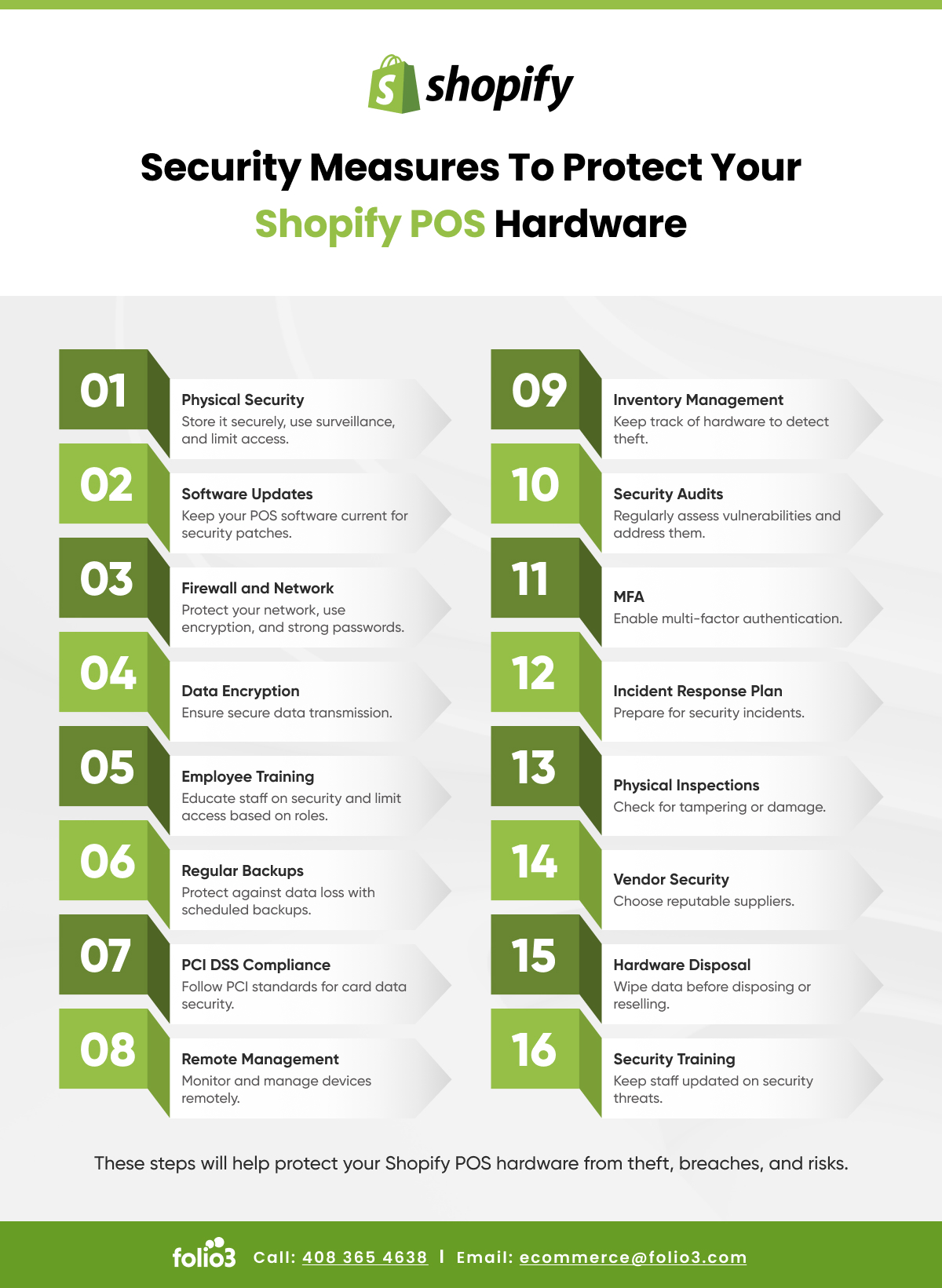
Setting Up Shopify POS Hardware
Setup is straightforward for most retailers, particularly when using Shopify’s own devices. The general process follows these steps:
- Download the Shopify POS app on your iOS or Android device
- Connect your card reader via Bluetooth pairing in the app settings
- Connect your receipt printer via USB or Bluetooth and assign it in POS settings
- Link your cash drawer through the receipt printer’s RJ11 port
- Add your barcode scanner and test it by scanning a product
- Run a test transaction to confirm all components fire correctly
Most single-register setups take two to four hours to complete, including product catalog testing. Multi-location deployments may require IT support, especially if connecting to existing networking infrastructure.
Common Setup Mistakes to Avoid
Using a Bluetooth receipt printer and a Bluetooth card reader simultaneously can cause connection conflicts on some iOS devices. Where possible, connect one device via USB and the other via Bluetooth. Also, avoid using consumer-grade Bluetooth tablets for permanent installs — the connection stability is lower than dedicated retail hardware.
Third-Party Hardware and the Best Hardware POS Integration for Shopify Store
The best hardware POS integration for Shopify store environments often depends on what you already own. If you’re coming from Square or another POS system, some of your existing hardware may transfer — but card readers almost never do, since payment terminals are processor-locked.
For third-party hardware outside card readers, the compatibility window is wider. Many USB barcode scanners, receipt printers, and cash drawers from reputable brands work cleanly with the Shopify POS app.
| Scenario | Recommended Approach |
| New store, no hardware | Buy Shopify bundle or branded pieces |
| Migrating from another POS | Keep printers/scanners, replace card reader |
| Multi-location chain | Standardize on one printer and scanner model |
| High-volume retail | Use wired connections over Bluetooth where possible |
If you’re evaluating a Shopify migration from another platform, hardware compatibility is one of the first things to audit. Some retailers mistakenly budget only for software costs and overlook the hardware refresh entirely.

Shopify POS Hardware for Different Business Types
The right hardware configuration varies based on your retail format.
- Fashion and apparel stores benefit most from a handheld barcode scanner and mobile card reader setup, allowing staff to checkout customers from anywhere on the floor rather than at a fixed counter.
- Food and beverage retailers running Shopify POS alongside a simple menu often prioritize receipt printers and cash drawers, since cash transactions remain more common in these segments.
- Pop-up shops and market vendors can run a fully mobile setup with just the Shopify POS app on an iPhone and the Tap & Chip Reader — no additional hardware required.
For more complex retail environments, Folio3’s team has helped brands configure Shopify integrations that connect in-store hardware with back-end ERP and inventory systems, keeping data synchronized across channels.
Shopify Hardware POS: Pricing Overview
Hardware costs are a one-time investment, but it’s worth understanding the full range before budgeting.
- Shopify Tap & Chip Reader: ~$49
- Shopify POS Terminal: ~$399
- Star TSP143III Receipt Printer: ~$200–$250
- Socket Mobile Barcode Scanner: ~$150–$300
- APG Cash Drawer: ~$100–$150
- iPad (entry-level, refurbished): ~$250–$400
A functional single-register setup using a mix of Shopify-branded and compatible third-party hardware typically runs between $600 and $1,200, not including the iPad.
Key Takeaways
- The Shopify POS app works on iPad and Android; iPad offers the most stable hardware support
- Shopify’s card readers only work with Shopify Payments — third-party payment processors require their own terminals
- Most USB HID barcode scanners and standard receipt printers are Shopify compatible hardware, but always verify before buying
- Bundles reduce complexity for new stores; individual components give more flexibility for scaling
- Third-party hardware can work well, but requires more setup time and carries less warranty support from Shopify
Conclusion
Getting your Shopify POS hardware right from the start prevents the slowdowns and workarounds that hurt the in-store experience. Whether you’re setting up a single register or a multi-location retail chain, the choices you make around devices, compatibility, and integration have a direct impact on day-to-day operations.
Use this guide as your checklist when sourcing or upgrading your Shopify hardware POS setup. If your needs go beyond standard configurations — like connecting your POS data to an ERP or building a unified omnichannel stack — talk to the Folio3 team to explore what’s possible for your store.
Frequently Asked Questions
What Shopify POS Hardware Do I Need to Get Started?
At a minimum, you need a card reader and a device running the Shopify POS app. A receipt printer and barcode scanner are recommended once your catalog or transaction volume grows.
Is Shopify POS Hardware Compatible With All Shopify Plans?
Most hardware works across all plans. The Shopify POS Pro plan unlocks advanced features like staff roles and multi-location support, but the hardware itself is not plan-restricted.
Can I Use Third-Party Hardware With Shopify POS?
Yes. Receipt printers, barcode scanners, and cash drawers from third-party brands are supported as long as they meet Shopify’s compatibility requirements — typically USB HID or Bluetooth pairing standards.
Does the Shopify POS Card Reader Work With Third-Party Payment Processors?
No. Shopify’s card readers are locked to Shopify Payments. If you use a different payment gateway, you need a separate, processor-compatible terminal.
How Do I Know if My Existing Hardware Is Shopify Compatible?
Check Shopify’s official hardware compatibility documentation. For barcode scanners, test HID compatibility. For printers, verify your model is listed under supported Star or Epson devices.
What Is the Best Hardware POS Integration for Shopify Store With Multiple Locations?
Standardize on one printer and scanner model across locations to simplify training and support. Use Shopify POS Pro for multi-location inventory syncing and staff management.
Can I Run Shopify POS Without Any Additional Hardware?
Yes. The app on a smartphone with a tap-to-pay reader is a complete mobile setup. This is common for pop-up vendors and market sellers.
Source: https://ecommerce.folio3.com/blog/shopify-pos-hardware/